The image is decoded in browser memory and is never uploaded to OmniKit.
Decode QR images without uploading them
Scan QR Code from Image
Upload, drag, or paste a screenshot or photo. OmniKit reads links, Wi-Fi details, contact cards, and text locally in your browser.
QR IMAGE SCANNER
Read a QR code from an image
Image stays on this device
01
Source imageDrop, choose, or paste a clear QR image
Choose your image
Use a clear image with all four edges of the QR code visible.
Drop a QR image here
PNG, JPG, or WebP · up to 20 MB
Recognizes website links, Wi-Fi credentials, vCard contacts, and ordinary text.
Decoded links are shown first and open only after you choose the action.
How to scan a QR code from a screenshot or photo
Choose a PNG, JPG, or WebP image, paste an image from your clipboard, or drag a file into the scanner. For reliable results, use a sharp image with strong contrast and keep the entire QR code visible, including the blank border around it.
The scanner reads the image locally and displays the decoded content before any action is taken. If the QR code contains an http or https link, you can review it and then choose whether to open it in a new tab.
QR image scanner questions
Is the QR image uploaded?
No. The image is decoded locally in browser memory and is not sent to OmniKit.
Which image formats can I scan?
The scanner accepts PNG, JPG, and WebP images up to 20 MB. Clear screenshots usually scan more reliably than blurry or angled photos.
Will OmniKit automatically open a decoded link?
No. Decoded links are displayed first and open only when you choose the Open Link button.
Check decoding with known images
Use the links below to run each image in the scanner above. These reference results do not guarantee that arbitrary images will decode.
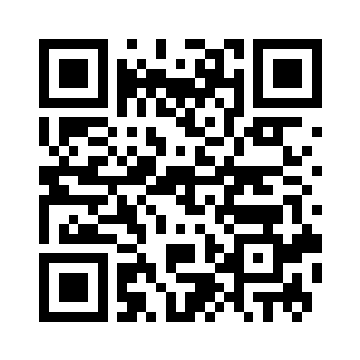
Clear image
360 × 360 px · 2096 bytes
Reference decode: matches input
Try this image → · Download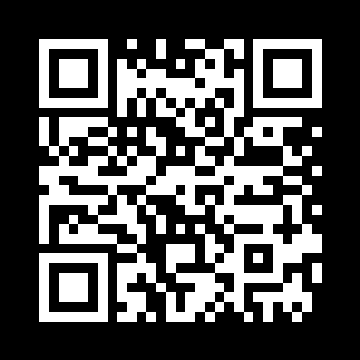
Inverted colors
360 × 360 px · 2093 bytes
Reference decode: matches input
Try this image → · Download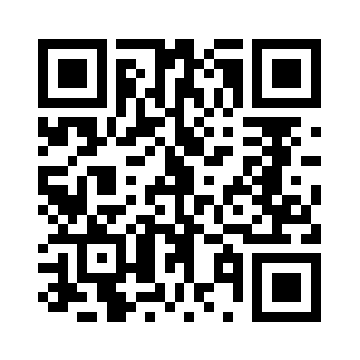
Rotated 90 degrees
360 × 360 px · 2079 bytes
Reference decode: matches input
Try this image → · Download
Downscaled to 24 pixels
24 × 24 px · 295 bytes
Reference decode: not decoded
Try this image → · Download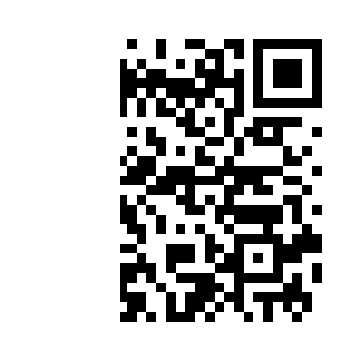
Left third removed
360 × 360 px · 1993 bytes
Reference decode: not decoded
Try this image → · Download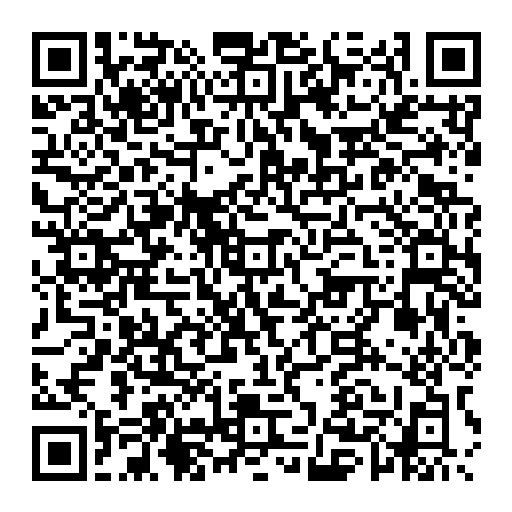
Fictional contact card
512 × 512 px · 4729 bytes
Reference decode: matches input
Try this image → · Download